The Basics
At Sparked Host, we use WHMCS as our billing and ticket panel. This is a well-known solution for automatic billing. WHMCS as a Support Representative will only ever be used for Technical and Pre-Sales support, however, you may be given access to Bot Hosting, Web Hosting, or Modded Minecraft if you're knowledgeable about the field. As you advance to higher roles, your use of WHMCS will increase much more so a good understanding of it is vital.
When you first get your login information for WHMCS, you will be prompted to enable 2FA, like all stuff staff-related, you must have 2FA activated. Once you activate 2FA you will see the main WHMCS dashboard.
tip
Open any of the following images in a new tab if quality is lacking:::
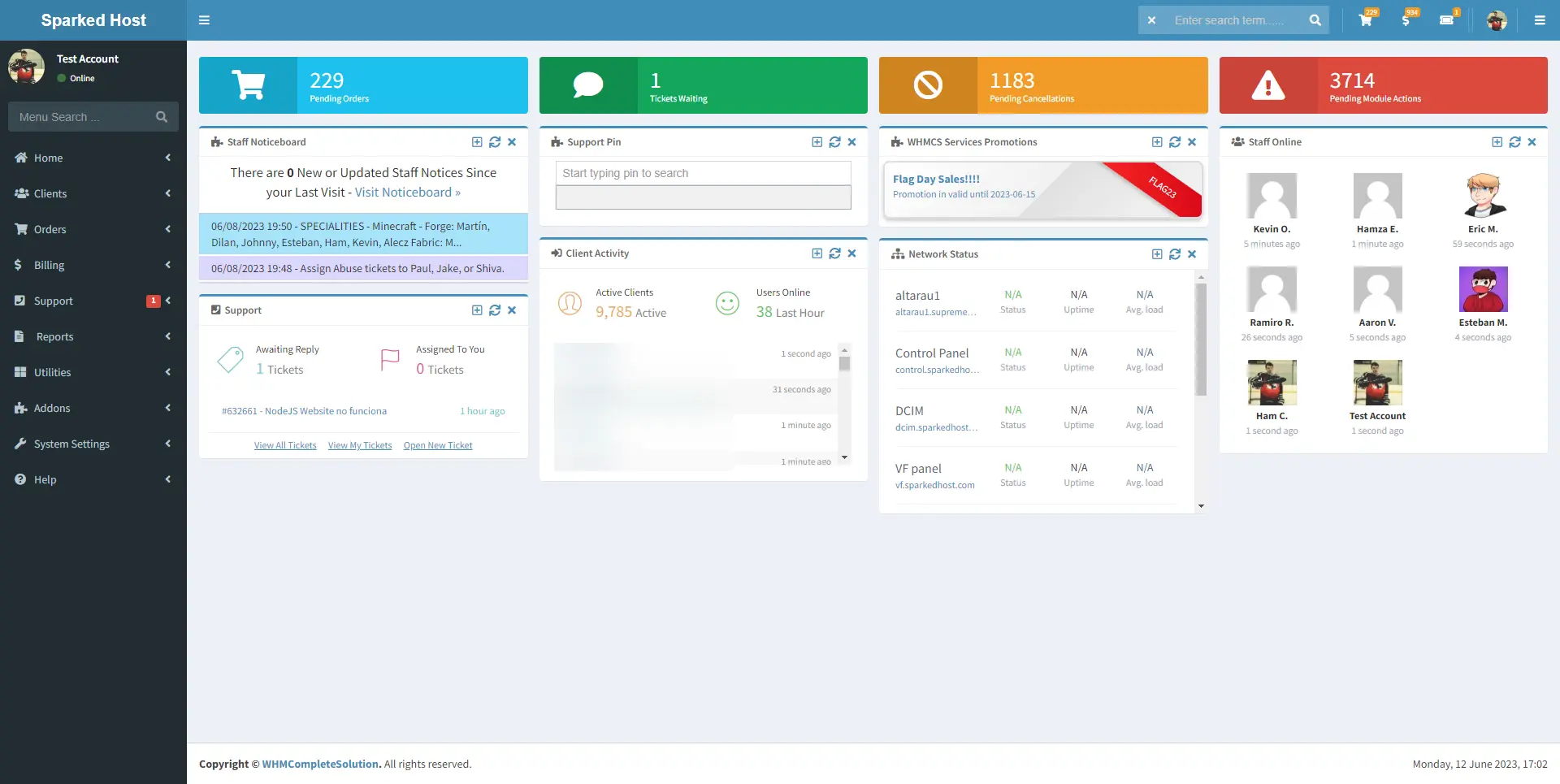
You will likely not need any features on the dashboard aside from the Support Pin feature, which is discussed here.
Tickets
WHMCS Tickets are our main way of providing support. All billing issues are dealt with here as well as all our more complex issues. For smaller issues, people often go to Crisp. To see the tickets, select any of these which will take you to the support page:
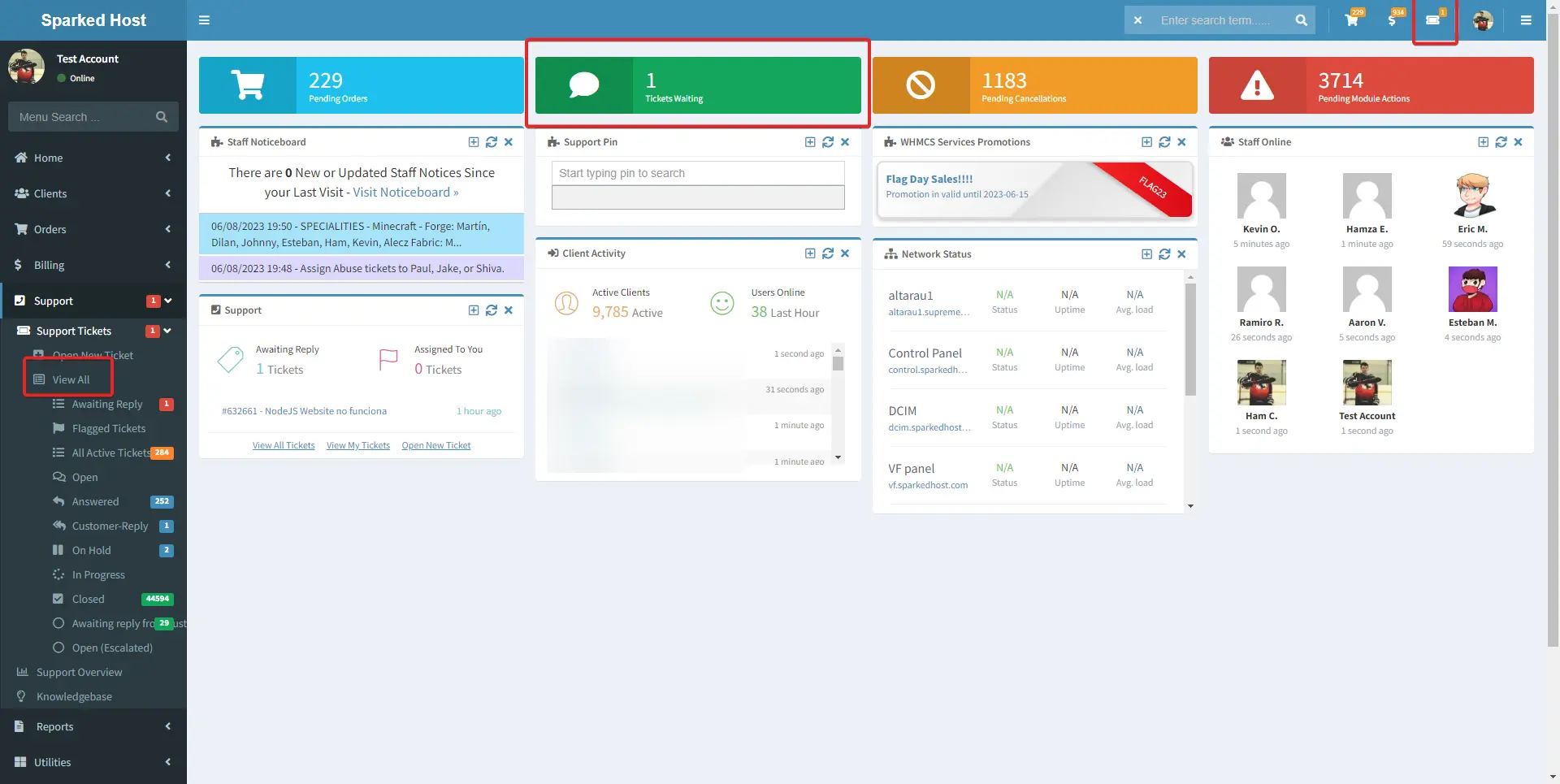
Once selected, you will be prompted with all tickets currently awaiting a reply. You may respond to any of these if you are familiar with them:

For the following example, there is a Technical ticket recently opened:

Once you've entered the ticket, you can view the information the client has provided along with the applicable service highlighted:
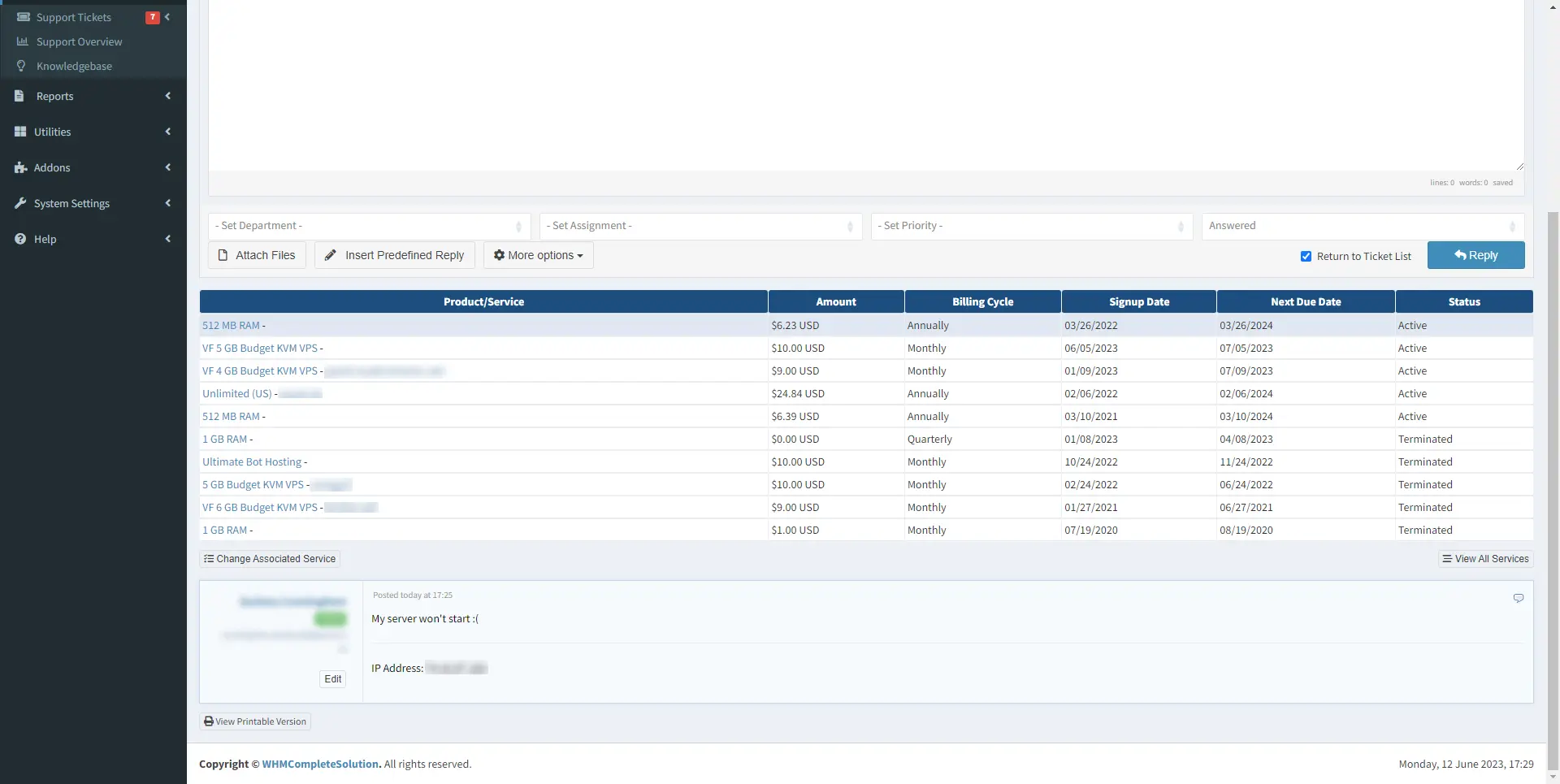
Some clients may not select a service when opening the ticket, another way to check for the applicable service is selecting Custom Fields at the top of the ticket and viewing the server ID there. If that is blank as well, you can use your judgement for the applicable service or ask for confirmation before proceeding:

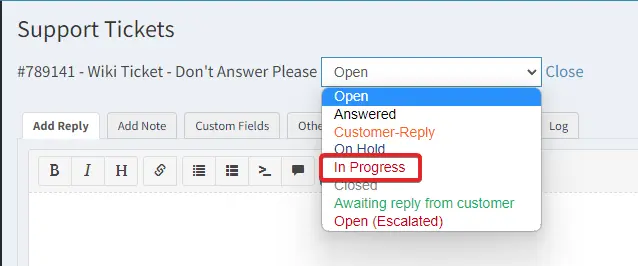
Once you've begun working on the ticket/service, you're able to set the ticket In Progress, this lets other staff members and the customer know that you are currently working on this ticket. Avoid changing a ticket to In Progress until you've begun working on the ticket/service:
Learning how to access the customer's service using Apollo Staff Subuser can be found here.
Once resolved, you may respond to the ticket explaining the issue the best you can. If you were unable to solve the problem, you may ask for more information as needed or escalate the ticket to another department/staff member if applicable.
When escalating/assigning a ticket, you may respond with:
Hello [FIRSTNAME],

Assigned to [Department/Staff user]. Please await their response.

Kind regards,
You may edit this template as you see fit to meet your own personal standards.
You can then select the applicable Department/Staff Member.

When escalating a ticket, always ensure you set the status to Open or Open (Escalated), failure to do so will result in the ticket not being shown in the ticket list and consequently never resolved. An example would look like this:

If you come across a ticket that is resolved, you may close it. If the ticket would benefit from a closing response, you may set the status when replying to Closed:

If the ticket does not require a response, you may close the ticket using the button at the top:
